· Reverse Engineering · 8 min read
Unshackling the AULA Mini 60 HE Pro: A Reverse Engineering Journey
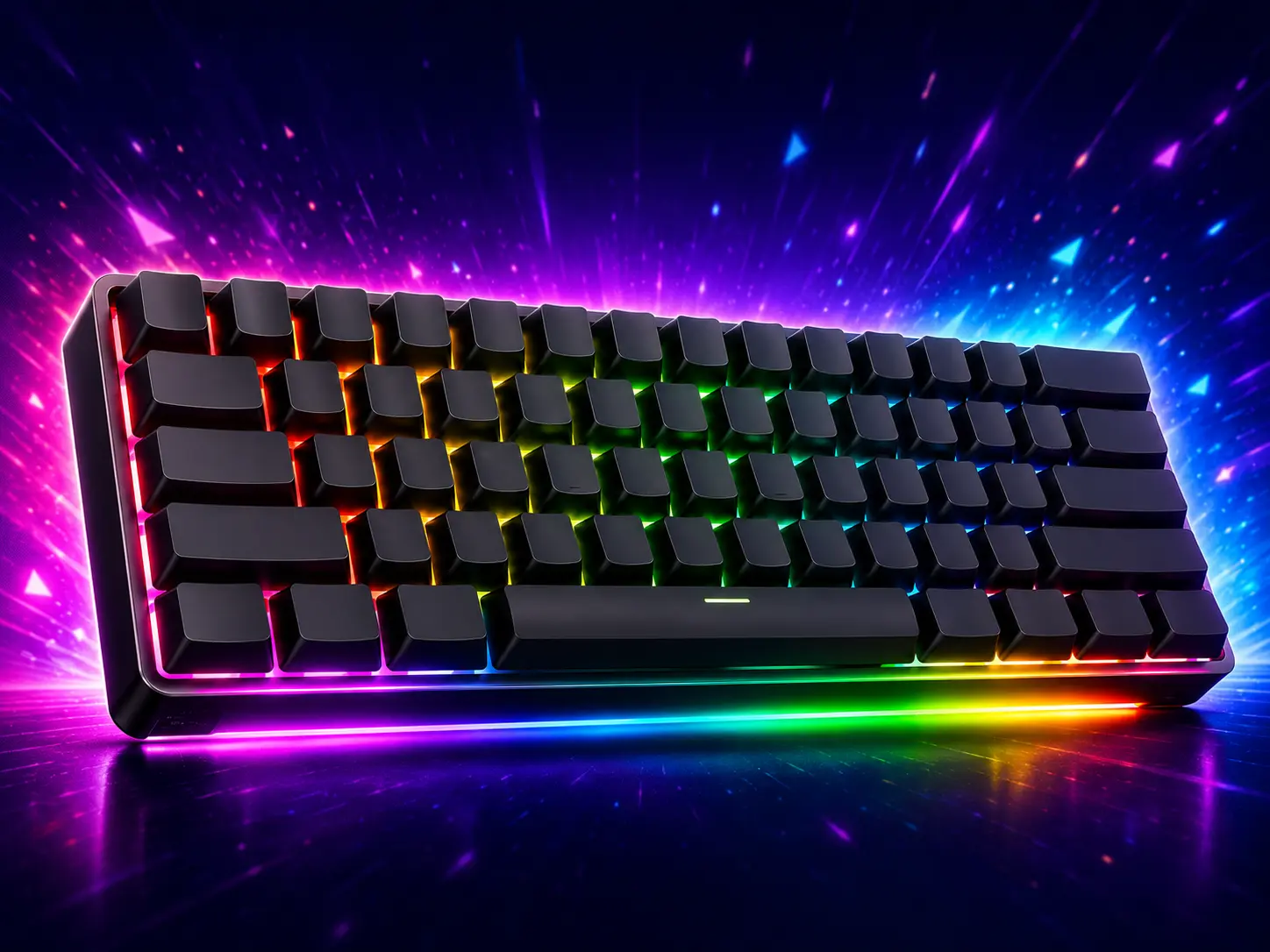
There seems to be a reoccurring theme where every couple of years I fancy a new keyboard. Since I am overseas, I don’t have access to my keyboads at home – so I do what any addict would do an went online and squashed that urge.
I picked up the AULA MINI 60 HE PRO, an affordable, compact keyboard that uses magnets to sense when you press a key, rather than traditional physical switches. This is called a Hall-effect (HE) keyboard. For the price, the hardware is remarkably solid, offering features you typically only see on much more expensive boards, like being able to change exactly how far down you need to press a key before it registers.
However, there was one glaring issue: configuring the keyboard—whether changing what keys do, adjusting the magnetic sensitivities, or simply tweaking the Red Green Blue (RGB) lights—required using their official web application hosted at hub.aulacn.com.
While WebHID (a browser feature that lets websites talk directly to your USB devices) is modern and convenient, relying entirely on a proprietary web service is far from ideal. It meant I was completely at the mercy of their servers; if the website were to go offline, my hardware’s programmability would vanish overnight. Furthermore, as a heavy Vim user running Linux, I rely on very specific key layouts. I needed a feature called a Mod-Tap, where tapping Caps Lock acts as the Escape key, but holding it acts as Control. This was difficult to achieve or tune through the limited official website.
This post chronicles my journey to reverse-engineer the firmware (the code running on the keyboard itself) and the Human Interface Device (HID) protocol (the language the keyboard uses to talk to the computer). It covers extracting the firmware, analyzing its safety mechanisms, building a completely offline Python driver, uncovering how it reads the magnets, and eventually writing custom code to fix my typing flow.
1. Extracting the Firmware
Before I could start sending arbitrary commands to the keyboard, I wanted to understand exactly what I was dealing with to avoid accidentally breaking (or “bricking”) the device. The AULA web app has a firmware update feature, which downloads a standalone update program for Windows (MINI 60 HE PRO_V1.53.exe).
Digging into this update program with a Python tool called pefile, I quickly realized it was a standard SONiX Universal Serial Bus (USB) Microcontroller Unit (MCU) In-System Programming (ISP) Tool wrapped in a custom user interface. By looking inside the update program’s internal files (its Portable Executable, or PE, resources), I located the raw firmware binary code. I carved out this 504 KB blob and was thrilled to find it was plain code—no encryption to bypass!
The Hardware Revealed
From examining the code and the updater’s internal data, I mapped out the hardware:
- Vendor: SONiX
- Chip: SN34F280 (an undocumented chip designed for magnetic switches)
- Architecture: ARM Cortex-M3 (a very common type of processor for small devices)
- Memory: 512 KB of Flash (for storing the code), with approximately 32 KB of Random Access Memory (RAM) for active tasks.
2. Reading the Code and Finding the Security Gate
Loading the code into Ghidra (a tool used to analyze and disassemble software), I seeded the starting point of the code (the vector table) and began exploring. My primary concern was safety: I needed to know what configuration commands might accidentally wipe the keyboard’s memory.
By tracing how the keyboard handles USB requests, I located a security check (often called a “magic gate”) in the code. The firmware compares incoming messages against a highly specific 8-byte sequence:
AA 55 A5 5A FF 00 33 CCWhen this exact password is received, the firmware doesn’t immediately halt and erase itself. Instead, it sets a specific bit in memory. This acts as a sticky note telling the keyboard to restart later. The main loop of the keyboard checks this sticky note, safely disconnects from the computer, and restarts into a special update mode (the In-System Programming, or ISP, bootloader).
This answered a major question: standard configuration writes (like setting keymaps or changing colors) are totally separate from the update mode. It was safe to experiment without fear of instantly wiping the keyboard!
3. Learning the Language
To write an offline driver, I needed to understand the language the board spoke. The web app’s compressed JavaScript code contained the entire communication protocol. By reading through the code, I figured out how it works.
The protocol relies on sending small, 32-byte chunks of data. Large blocks of settings, such as the entire keyboard layout, are transmitted 24 bytes at a time, moving down the line chunk by chunk.
Here is a visual breakdown of a message sent to the keyboard:
| Bytes | Description |
|---|---|
| 0-7 | Magic (0xAA) |
| 8-15 | Command ID |
| 16-23 | Length / Type |
| 24-31 | Address (Low) |
| 32-39 | Address (High) |
| 40-47 | Header [0] (optional) |
| 48-55 | Header [1] / Last Flag |
| 56-63 | Header [2] (optional) |
| 64-255 | Payload (Up to 24 Bytes) |
- Magic Bytes: Messages from the computer always start with
0xAA, while responses returning from the keyboard start with0x55. - Command Dispatch: The command IDs are straightforward. For example,
34writes the key layout, and39configures the magnetic sensitivity.
The macOS Security Roadblock
Armed with the protocol, I built a Python script to talk to the keyboard. However, when I initially tried to test it on a Mac, I hit a security error.
macOS strictly protects keyboard devices from being directly manipulated by user programs for security reasons. Certain critical commands require sending special requests that macOS actively blocks. Thus, native configuration had to be done on Linux or Windows, which are more permissive.
To fully understand the updater’s behavior on Windows, I even spun up a Windows Virtual Machine (VM) utilizing tools to capture the official updater’s USB traffic. This confirmed my findings: my Python replica was perfectly viable as long as the operating system allowed it.
4. Uncovering the Magnetic Magic
The most fascinating part of the process was understanding how the keyboard handles the magnetic switches.
Through analysis of the code, I mapped out the entire data pipeline:
- Reading the Magnets: The firmware captures raw magnetic readings for the keys, storing them in memory.
- Smoothing the Signal: Raw readings from magnets are notoriously noisy. If the reading is valid, it is passed through a digital smoothing filter (an Infinite Impulse Response, or IIR, filter) to clean up the jittery signals.
- Calculating the Distance: I initially assumed the raw magnetic readings were just divided by a number to calculate the physical millimeters the key was pushed down. I was wrong! Because magnetic fields get stronger exponentially as the magnet gets closer, simple math doesn’t work. The firmware uses a specific step table. It figures out the distance by walking up or down this table by 1 raw count per
0.01 mmof physical movement. - Rapid Trigger (RT): Finally, the physical distance is compared against a dynamically updated “pressed highest point” and “released lowest point.” If the current distance changes from these points by a tiny amount (e.g., releasing the key by just 0.10mm), the firmware instantly tells the computer the key was lifted, entirely bypassing the need to let the key travel all the way back up!
%%{init: {'theme': 'dark', 'themeVariables': { 'darkMode': true }}}%%
sequenceDiagram
participant Finger
participant Sensor
participant Firmware

Finger->>Sensor: Presses Key Down
Sensor->>Firmware: Raw Magnetic Count Drops
Firmware->>Firmware: Distance Increases<br>Update Highest Point
Finger->>Sensor: Lifts Key Slightly (e.g., 0.10mm)
Sensor->>Firmware: Raw Magnetic Count Rises
Firmware->>Firmware: Distance Decreases below<br>(Highest Point - 0.10mm)
Firmware-->>Firmware: Emit Key Up (Rapid Trigger!)
%%{init: {'theme': 'dark', 'themeVariables': { 'darkMode': true }}}%%
flowchart TD
A["Read Magnet Sensors"] --> B["Raw Reading"]
B --> C{"Value less than 1000?"}
C -->|Yes| D["Clamp to 1000"]
C -->|No| E["Digital Smoothing Filter"]
D --> F
E --> F["Stable Raw Count"]
F --> G["Step Table (Math)"]
G --> H["Physical Distance"]
H --> I["Rapid Trigger Logic"]5. Pushing Boundaries: Custom Overlays
With my tool fully functional, I successfully wrote my Vim-friendly layout directly to the board’s memory. I set my Caps Lock key to a Mod-Tap, giving me Escape on a quick tap and Control on a hold.
However, I noticed a quirk with the Spacebar. When using the Spacebar as a modifier (like holding it to access arrows on H, J, K, L), the stock firmware waits to see if you release the key before typing a space. This creates a “sticky” delay during fast typing where the space character appears a beat late.
To solve this, I wrote a custom flash overlay (extra code injected into free space on the keyboard). At the core of this overlay are custom Finite State Machines (FSMs), which are essentially simple logic flowcharts for code:
Deferred Space FSM: The spacebar operates through a small flowchart (
IDLE -> PEND -> HOLD / DRAIN).%%{init: {'theme': 'dark', 'themeVariables': { 'darkMode': true }}}%% stateDiagram-v2 direction LR [*] --> IDLE IDLE --> PEND : Space Pressed Down PEND --> HOLD : Arrow Key Pressed PEND --> DRAIN : Space Released or Other Key HOLD --> DRAIN : Space Released DRAIN --> IDLE : Space Physically Up- When pressed down, it moves from
IDLEtoPEND(waiting to see what you do next). - If you press an arrow key, it moves to
HOLD, activating the arrows. - If you press any other key, or let go of the spacebar, it moves to
DRAIN, typing the space safely.
- When pressed down, it moves from
Space-Cadet FSM: Similar logic applies to the Shift keys. This is a trick where a quick tap (shorter than
200ms) types a parenthesis(or), while holding it functions as a normal Shift.Flow Tap Algorithm: To prevent the Spacebar from feeling sticky during fast typing, the code checks a timestamp. If the space is pressed within 200 milliseconds of your last key release, the flowchart bypasses the
PENDwait state and instantly types a space.
These flowcharts are extremely fast and tie directly into the magnetic sensors, completely eliminating the typing lag while preserving the advanced hold-to-navigate functionality.
Conclusion
Reverse-engineering the AULA MINI 60 HE PRO has been an incredibly rewarding project. What started as a desire to avoid a web browser driver turned into a deep dive across the entire stack—from bypassing macOS security and analyzing code in Ghidra, to mapping out how magnetic keyboards actually calculate distance.
I can now freely tune my keyboard, customize complex keys, and run everything locally on my Linux machine without the internet. It has effectively transformed a budget keyboard into an incredibly powerful and flexible daily driver.



Join the conversation
Comments